Bound to the cat
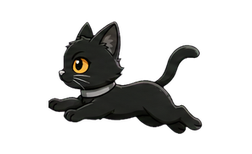
Left click toggles both the running animation and Keep Awake, so the menu bar always tells the truth.
Mac menu bar companion
A tiny cat for your menu bar. Now it also keeps your Mac awake for long downloads, demos, builds, renders, and other tasks that should not quietly stop.
New in RunningCat
When the cat runs, Keep Awake is active. When the cat rests, Keep Awake is released. The same state is used by left click, the right-click menu, and Settings.
Left click toggles both the running animation and Keep Awake, so the menu bar always tells the truth.
Choose 15 minutes, 30 minutes, 1 hour, 2 hours, or keep it on until you turn it off.
Keep the Mac awake only, or keep the display on too when you need a visible desktop presentation.
Designed for confidence
RunningCat does not ask users to trust a hidden switch. The active state appears in the menu bar tooltip, at the top of the right-click menu, and inside Settings with remaining time.
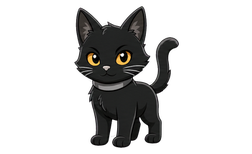
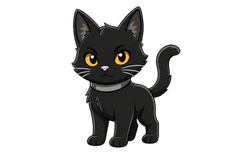
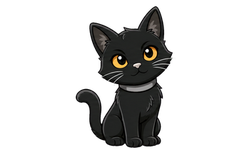
Momo joins the app
What it is good for
Downloads and background work: prevents normal idle system sleep while Keep Awake is on.
Desktop demos: enable Keep Display On when the screen must stay visible.
Closed MacBook lids: RunningCat does not override macOS clamshell sleep by itself.
FAQ
RunningCat does not edit your macOS Lock Screen settings. It temporarily asks macOS to stay awake while a Keep Awake session is active. The result depends on both timers: the RunningCat duration and your system display-off duration.
The Mac stays awake, but the display may still turn off on the system schedule.
The Mac stays awake and the display is kept on for the RunningCat duration.
Password requirements, manual lock, manual display sleep, and closed-lid behavior still belong to macOS. RunningCat does not bypass those security or hardware rules.
Free on Mac App Store
Runs on macOS 12.0 or later. No account, no analytics, no in-app purchases.
